
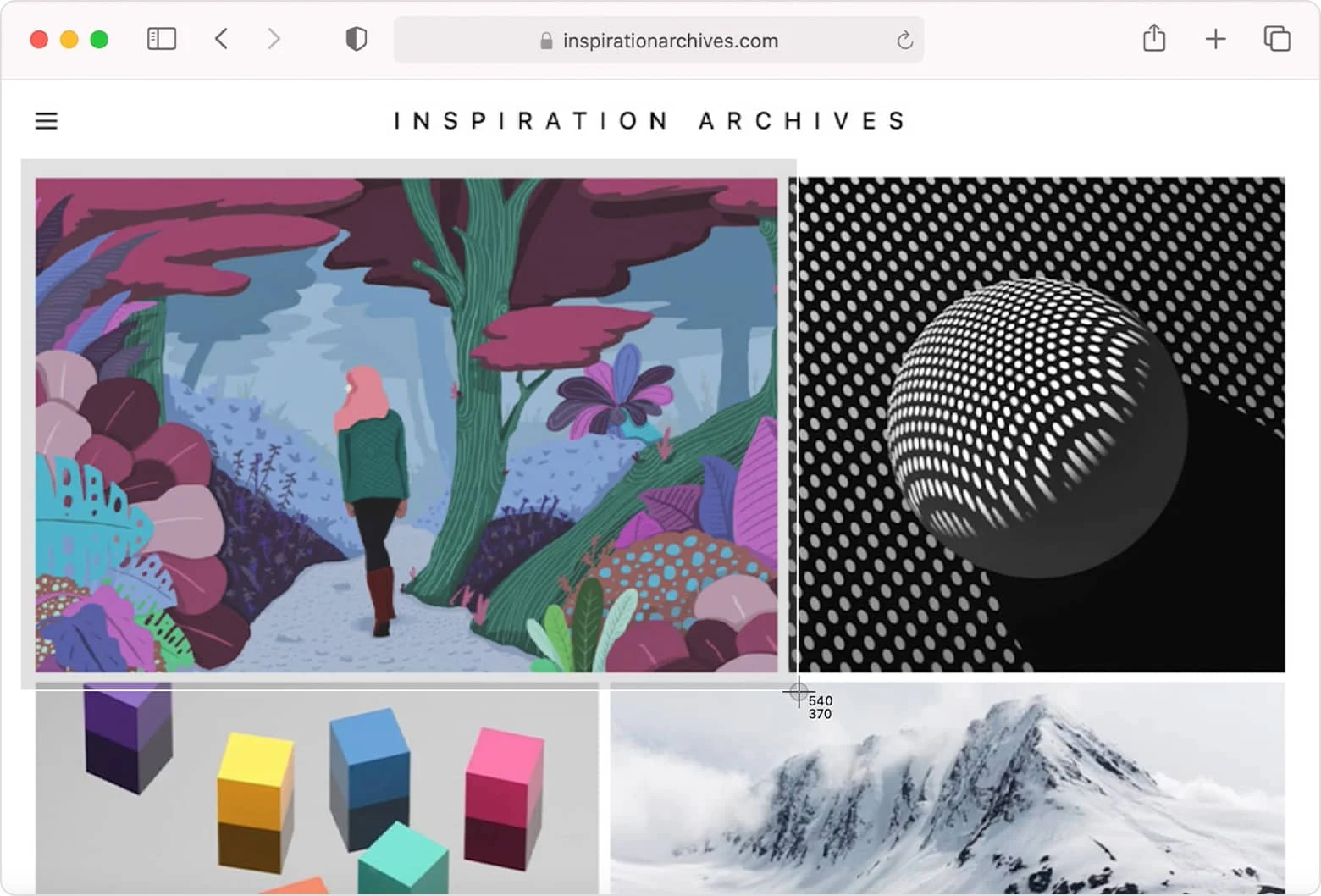
A useful support screenshot shows enough context to identify a problem without exposing private information. The goal is not to capture the whole screen by default, but to create a clear visual record that can be matched with the steps, device, and time of the issue.
Reproduce the issue deliberately
Write down the actions that lead to the problem and repeat them once if it is safe to do so. Capture the state where the unexpected behaviour is visible. If the issue disappears, record that fact rather than staging an image that suggests certainty.
Include the right amount of context
Show the relevant browser area, page section, message, or control and enough surrounding interface to establish where it appears. Include the address bar only when the location matters and the URL contains no private tokens, account identifiers, or sensitive query information.
Remove private and unrelated details
Check tabs, bookmarks, names, email addresses, notifications, account photos, form values, and background applications before sharing. Redact information securely rather than covering it with a removable layer in an editable file. When in doubt, recapture a cleaner view.
Add written evidence
A screenshot cannot show every click or prove what happened before it was taken. Send it with a short description, the expected result, the actual result, the approximate time, and relevant browser or device information. Use clear filenames so multiple images remain in the correct order.







Comments
Leave a Comment
Your email address will not be published. Required fields are marked *