
Open your credit card statement and count the AI subscriptions. If you are like a lot of professionals right now, there are at least three, and you probably use only one of them daily. The best AI tools for work in 2026 are not the ones with the loudest launch videos. They are the ones that quietly save you an hour a day and never make you think about them. This guide cuts through the noise, sorts tools by the job they do, and tells you where paying actually makes sense and where the free version is plenty.
Which AI Tools Are Worth Paying For?
For most people, one general-purpose AI assistant, one meeting-notes tool, and one automation tool cover about 90 percent of useful work. Pay for a tool only after a free trial proves it saves you at least two hours a month. Everything else is optional.
How to Decide Before You Spend
Before comparing features, ask three plain questions.
What task eats my time every week? Email drafts, meeting follow-ups, research, reports, and spreadsheets are the usual suspects. Pick the worst one first.
Does the tool connect to where I already work? An AI tool that lives inside your email, calendar, or document editor gets used. One that needs a separate tab often gets forgotten.
What happens to my data? If you handle client or company information, read the privacy settings. Check whether your inputs are used for training and whether your employer already has an approved tool.
General AI Assistants: Your Anchor Tool
A general assistant is the one subscription most people should consider. Claude, ChatGPT, Gemini, and Microsoft Copilot all handle drafting, summarizing, brainstorming, editing, and analysis. They differ in tone, strengths, and how well they plug into other software.
Many paid consumer plans sit around the twenty-dollar-a-month range, but prices and limits change often, so confirm on each provider's site. The free tiers are generous enough to test with. Upgrade when you hit daily limits or need longer documents, file uploads, or stronger models.
A practical tip: choose by testing. Give two assistants the same real task, such as rewriting a tricky client email, and see which one sounds more like you.
Meeting Notes and Transcription
If you sit in more than five meetings a week, this category pays for itself fastest. Tools like Otter, Fireflies, and the built-in features inside Zoom, Teams, and Google Meet record, transcribe, and summarize calls, and many pull out action items.
Worth paying for if you manage a team or work with clients. Skip paying if your video platform already includes summaries on your plan. Always tell participants when you are recording.
Research and Writing Help
For research, AI search tools such as Perplexity and the search modes inside major assistants return answers with source links. That is the part that matters. Treat every claim as a lead, not a fact, and click through before you quote anything.
For writing, grammar and style tools like Grammarly or built-in editors help polish text. A general assistant can do much of the same job, so you may not need a separate paid writing tool.
Automation: The Quiet Winner
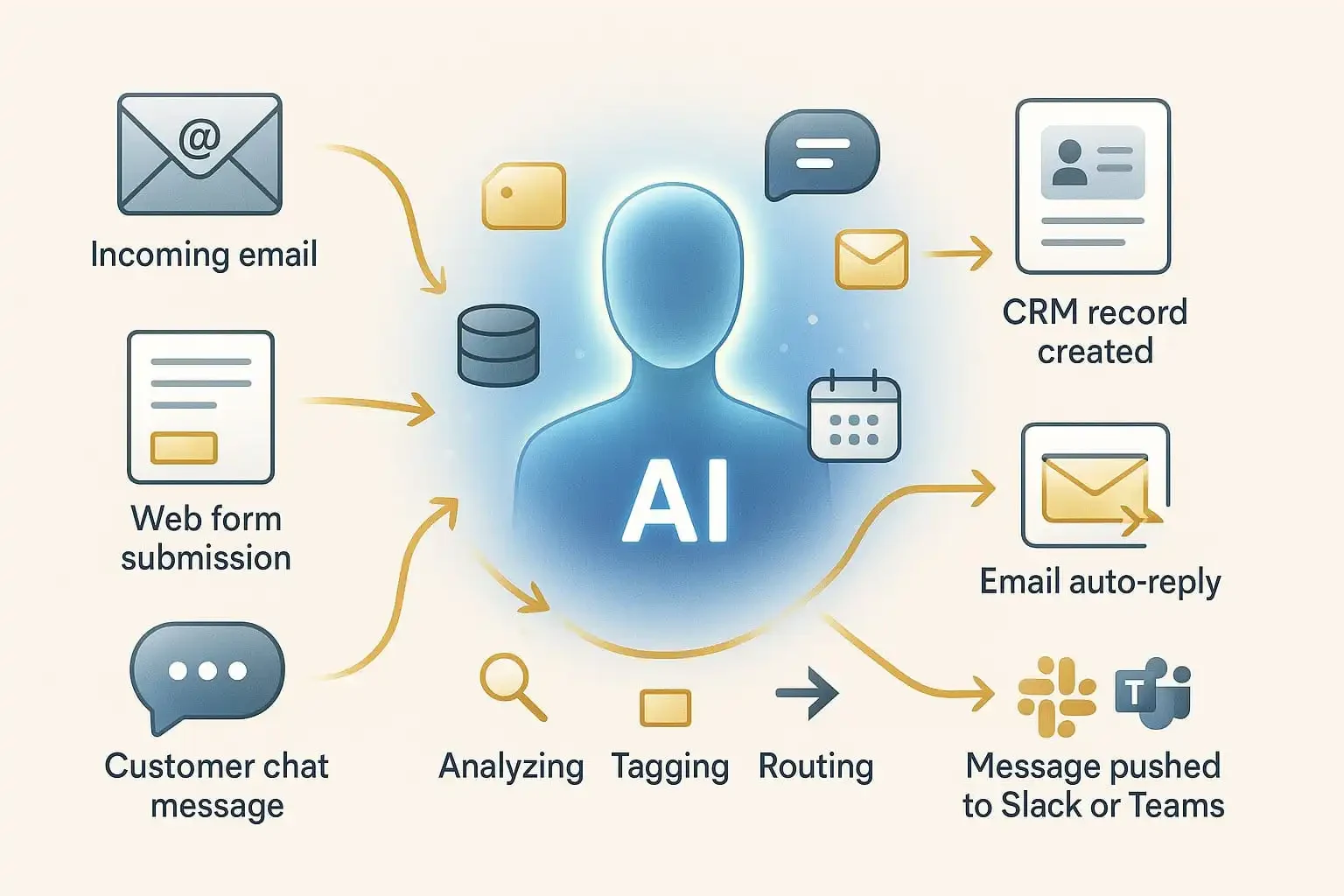
Tools like Zapier, Make, and the automation features in Notion and Airtable connect your apps so repetitive jobs run themselves. A new form entry becomes a spreadsheet row, a calendar invite, and a Slack message without you touching anything.
This category is underrated because it is not flashy. But a ten-minute automation that runs every day is worth more than a fancy tool you open twice. Start with one workflow and expand slowly.
Design, Slides, and Visuals
Canva, Figma, and Adobe all include AI features for image generation, resizing, and layout. Slide tools can turn an outline into a draft deck in seconds. The draft is rarely final, but it clears the blank-page problem.
Pay only if you produce visuals weekly. For occasional use, free plans cover most needs.
Coding and Spreadsheet Help
Developers get real value from coding assistants such as GitHub Copilot, Cursor, and Claude Code. They speed up boilerplate, debugging, and test writing. They still need human review.
Non-developers should not overlook AI inside spreadsheets. Asking a tool to write a formula, clean messy data, or explain a pivot table can save a surprising amount of frustration.
What to Skip
Be skeptical of tools that promise to replace an entire job, charge high prices for a thin wrapper around a general assistant, or require long annual contracts before you have tested them. If a feature can be done by the assistant you already pay for, you probably do not need a separate subscription.
A Simple Starter Stack
One general AI assistant
One meeting-notes tool, if meetings dominate your week
One automation tool for repetitive tasks
Free versions of design and research tools
Review the stack every quarter. Cancel anything you have not opened in a month.
Common Mistakes
Trusting output blindly. AI can sound confident and still be wrong. Check numbers, names, and citations.
Pasting sensitive data. Follow your company's policy before sharing confidential material.
Collecting tools instead of building habits. One tool used well beats five used badly.
The right AI setup is small, boring, and reliable. Pick the task that drains you most, test a tool against it, and pay only when the results are obvious. Your future self, and your credit card statement, will thank you.
Frequently Asked Questions
What is the best AI tool for work overall? A general-purpose AI assistant is the best starting point because it handles writing, summarizing, research, and analysis in one place. Test two or three with a real task before paying.
Are free AI tools good enough? For light use, yes. Upgrade when limits interrupt your work or you need advanced features like large file uploads.
Is it safe to use AI with company data? Only if your employer allows it and the tool's privacy terms fit your needs. When in doubt, use an enterprise plan approved by your IT team.
How much should I spend on AI tools each month? Most professionals do fine with one to three paid subscriptions. Spend more only when you can point to hours saved.
Will AI replace my job? AI is changing tasks within jobs more than replacing whole roles. People who learn to use these tools well tend to be in a stronger position.







Comments
Leave a Comment
Your email address will not be published. Required fields are marked *